This post and the photos within it may contain affiliate links. If you purchase something through the link, I may receive a commission at no cost to you. Read my disclosure for more info.
Turn your Samsung Frame TV (or almost any smart TV) into an instant party or holiday backdrop.
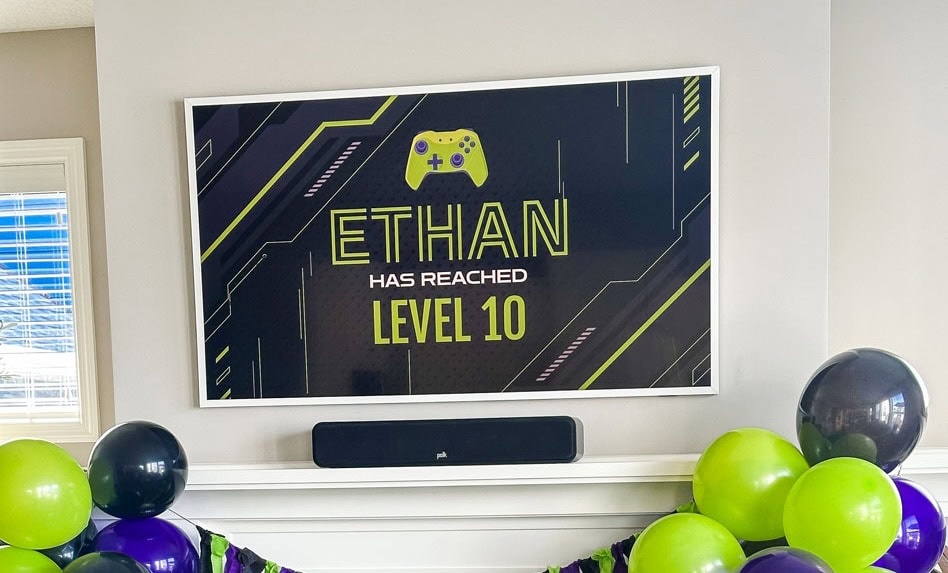
Every party backdrop I’ve ever bought got used exactly once. My TV gets used every day.
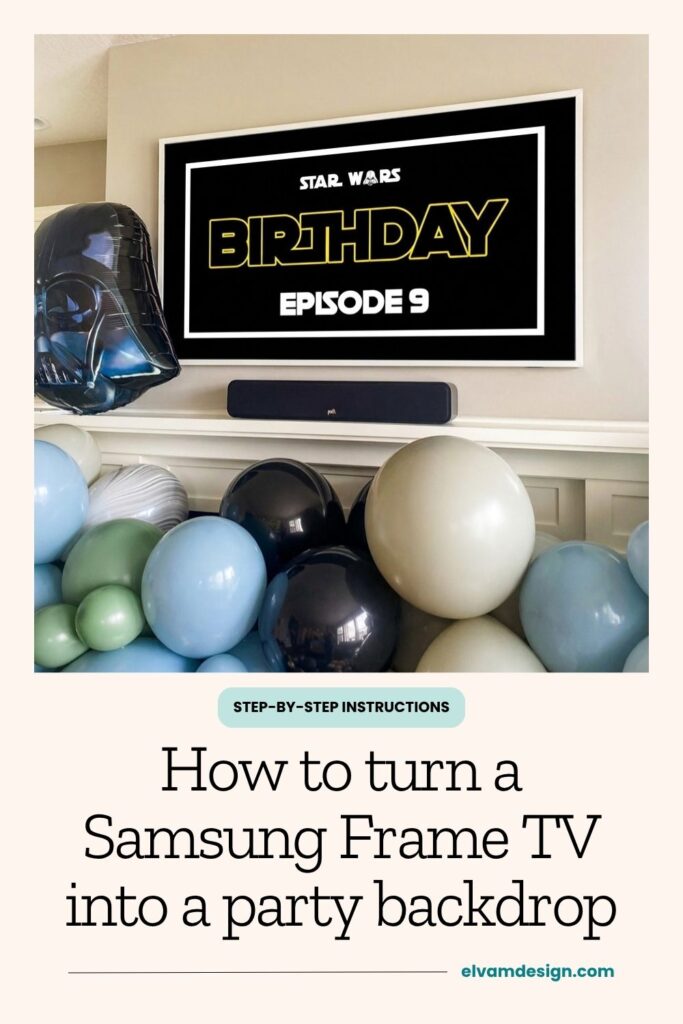
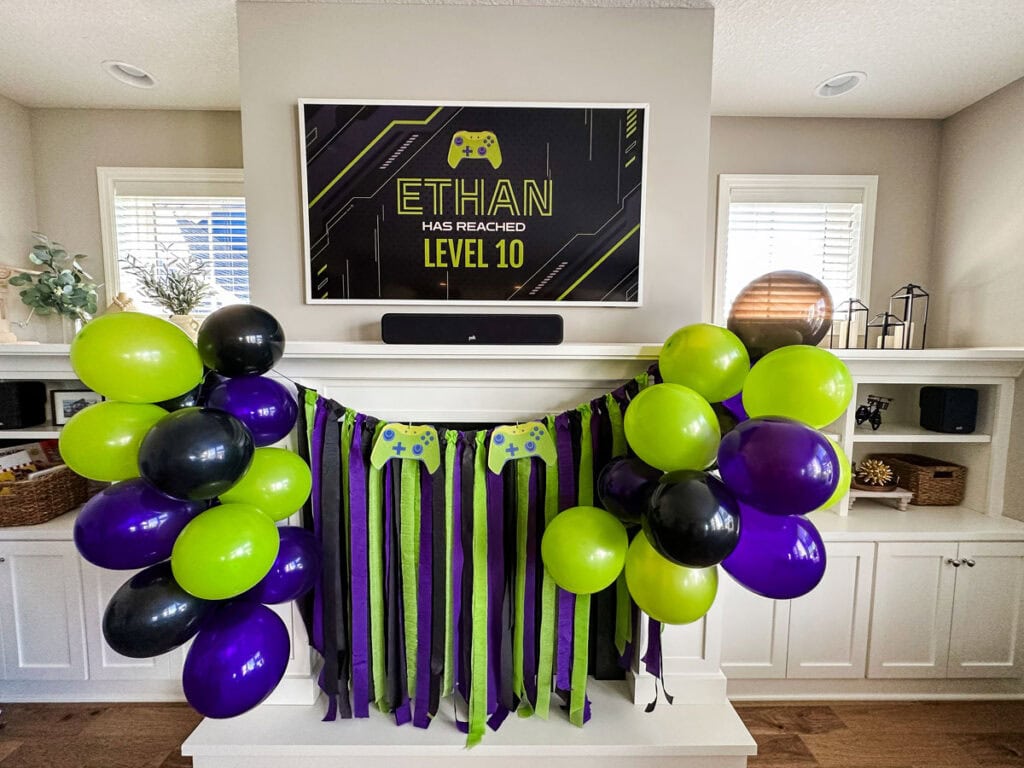
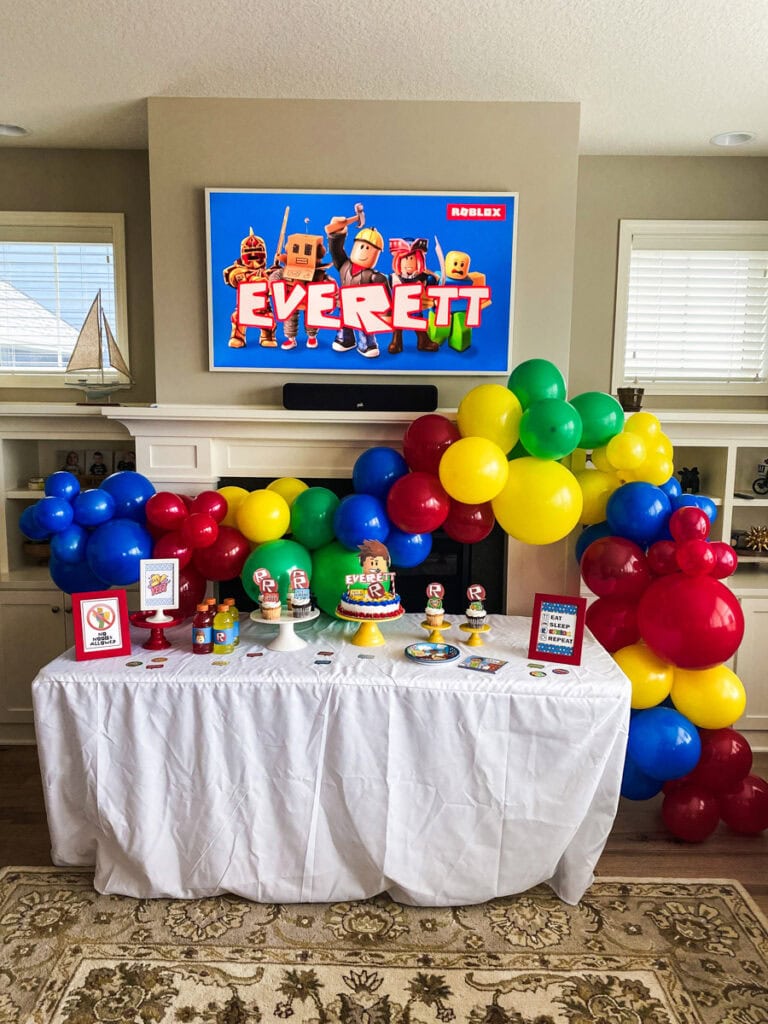
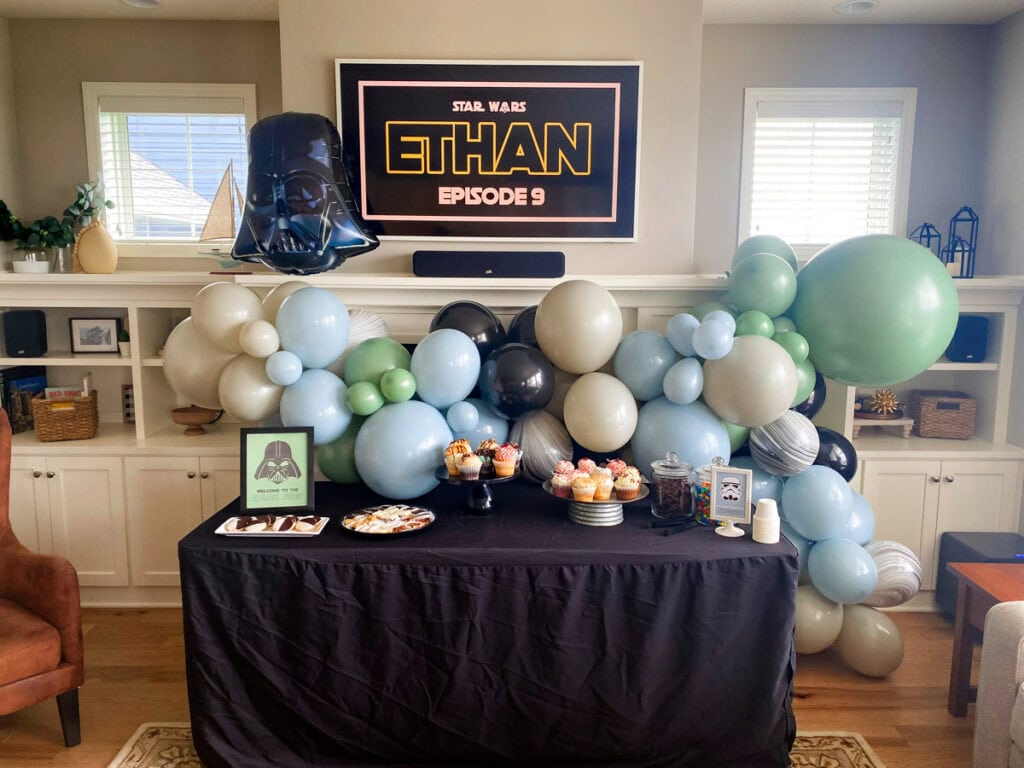
I decorate our great room the same way for pretty much every party we throw: balloons along the mantle and my Samsung Frame TV running custom art above the fireplace instead of just sitting there as a black rectangle.
It’s become one of my favorite party tricks, and it’s the whole idea behind this frame tv party backdrop setup: you’re not covering up your TV with a banner or propping a poster in front of it. You’re putting it to work.
If you already have a Frame TV, this post walks you through the exact image size, the setup steps, and where to get themed art. If you don’t, stick around anyway. This works on almost any smart TV you already own. I’m also comparing two dedicated art-mode TVs if you are in the market for a new TV.
What a Frame TV actually does for a party
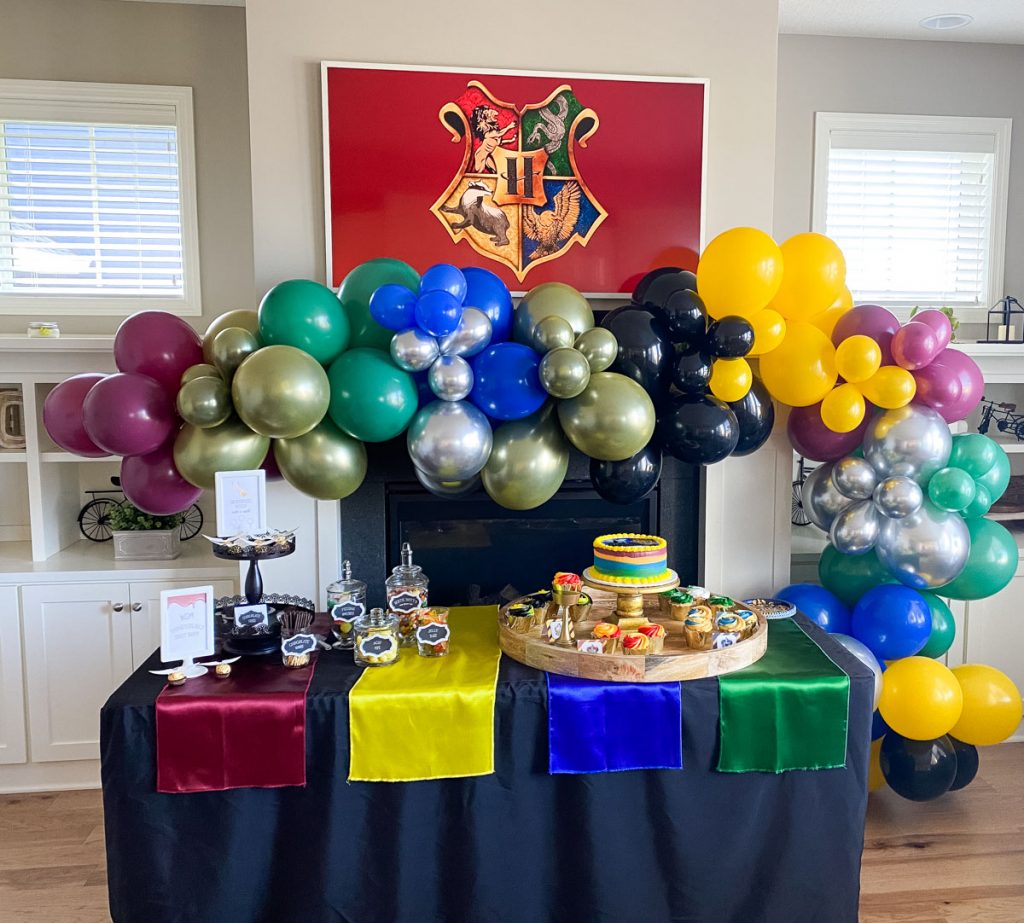
A Frame TV (or any art-mode TV) is designed to look like a piece of framed art when it’s not playing anything: a matte-look screen and a real frame, not a glossy black mirror. When you load a custom design into Art Mode, it just looks like decor, not a TV that happens to be off.
For a party, that means:
- You’re not buying, printing, and propping a separate backdrop over your TV
- It works with your other decor instead of competing with it. My balloons still go along the mantle; the TV just stops being the plain black rectangle in the middle of it
- Setup and teardown is instant. No tape, no easel, no leftover foam board taking up space in your garage after
- It doubles as a photo booth backdrop if you angle a chair or a little table in front of it

BEFORE: Small poster before I had a Frame TV AFTER: Art displayed on the Frame TV

The honest truth: You don’t need a Frame TV to do this
Here’s my honest take: I love my Samsung Frame TV because it’s flush-mounted against my wall and it’s genuinely easy to upload the art. Aside from the SmartThings app being glitchy sometimes (more on that below), it’s a great setup. But you can honestly do this with any TV you already own. A dedicated art-mode TV just makes it a little more seamless. It’s not a requirement.
No Frame TV, no problem. If you’ve got a Fire TV Stick, a Roku, a Chromecast, or an Apple TV plugged into a completely ordinary television, you’ve got this already. Most streaming devices already have a screensaver or ambient mode feature that will display your own photos instead of the generic default ones.
How to upload art on smart TVs
Hopefully these instructions are up-to-date but they should get you started in the right direction:
- Amazon Fire TV: Upload your art to an album in the Amazon Photos app. Go to Settings > then Display & Sounds > then Screensaver, select your album, and turn off the clock and caption overlays so it’s just the art.
- Roku: Newer Roku TVs have a built-in Backdrops feature under Settings > Home Screen Menu > Backdrops, where you can upload your own photos directly. Older Rokus can add art to a Google Photos album, add the Photo View channel, then set it as your screensaver under Settings, Screensaver, Photo View.
- Chromecast with Google TV: Upload your art to a Google Photos album, open the Google Home app, select your Chromecast, and go to Settings > Ambient Mode > Google Photos to pick the album.
- Apple TV: Upload your art to an iCloud Photos album, then go to Settings > Screen Saver > Photos > iCloud, and select the album.
For all of these, aim for a 16:9, horizontal image at least 1920x1080px but 3840×2160 is best for 4K viewing. It won’t look quite as seamless as a dedicated art-mode TV since the screensaver only kicks in after a few minutes of inactivity and you’ll need to tune the timing yourself, but it costs nothing and takes only a few minutes to set up.
One honest caveat: leaving a static image up for hours can contribute to screen burn-in, especially on OLED TVs. Rotate your art every few days rather than leaving one image up indefinitely, and skip max brightness if you can.
The exact Frame TV art size (and how to add it yourself)
If you have a Samsung Frame TV specifically, here’s the spec that actually matters:
3840 x 2160 pixels, 16:9 ratio.
That’s true 4K resolution at a standard widescreen ratio, and it’s the same for every Frame TV size: a 55″ and a 75″ both want the same file, just displayed larger.
Here’s how to actually get your art onto the screen:
- Download the SmartThings app if you don’t already have it (this is what connects your phone to the TV)
- Make sure your art file is sized to 3840 x 2160px before you save it
- Save the finished file to your phone’s photo library — I like to save my art to its own album so it’s easy to find
- Open SmartThings and go to your TV’s Art Mode
- Choose Add Photo and select your saved image
- When it asks about matting, choose No Mat if you want the art to fill the entire screen edge-to-edge
- Set it as the art currently showing on The Frame
That’s the whole process, and when it works, it takes about two minutes.
When it doesn’t work on the first try, that’s normal. It’s not you doing something wrong. SmartThings can be genuinely glitchy. It’s disconnected my phone from the TV mid-upload more than once, and I’ve had to back out and reconnect a couple of times before an image actually loaded. It usually works after a little troubleshooting, but “a little troubleshooting” is the key phrase. Because of that, I always load my party art the night before, never the morning of. Give yourself the buffer.
Want dedicated art-mode hardware? Comparing the Frame TV to alternatives
If a Frame TV or something like it is genuinely on your radar (not just for parties), here’s how it compares to alternatives.
Samsung The Frame TV

Samsung The Frame 65″ (2026)
What Customers Say:
Frame owners rate it 4.4 to 4.5 out of 5 stars on Best Buy, and picture quality is the most-praised thing (4.7/5). Reviewers specifically say it “looks like a real canvas painting.”
The recurring complaint isn’t the TV itself, it’s that Samsung’s full art library is a paid subscription (around $5/month or $50/year), plus a SmartThings app some reviewers call outdated or slow.
Quality:
This is the one with the sensors that make Art Mode feel automatic. It has both a motion sensor (wakes the art up when someone walks by, sleeps when the room’s empty) and a light sensor that adjusts the art’s brightness and color temperature to match the room, so it never looks like a screen glowing in a dim room. The matte, anti-glare finish is genuinely convincing, and it ships with a slim wall mount built for that flush, no-gap look.
Price:
The 2026 model retails at $1,499 at 55″, though it regularly goes on sale for around $1,197 or even less, especially during Black Friday and Prime Day. The 2025 model is cheaper and still widely sold: 55″ retails around $1,000 (sale price around $800), and 65″ retails around $1,500 but is often available for under $950 on sale. If budget matters more than having the newest model, the previous year’s Frame is worth a look before you assume it has to cost $1,499.
Hisense CanvasTV (S7N)

Hisense CanvasTV 65″
What Customers Say:
This one’s the surprise. Hisense actually out-rates Samsung on Best Buy, 4.7 out of 5 stars, with a much bigger review base. The thing customers mention again and again: no subscription fee for art.
The trade-offs people note are that it’s heavier to install (a two-person job) and the smart-TV features outside of Art Mode are just okay.
Quality:
Also QLED, with its own matte, anti-glare “Hi-Matte” display, plus a frame and ultraslim wall mount for a similarly flush look. It’s well-reviewed for the art-display experience specifically, though I couldn’t confirm it has the same light-sensor color-matching the Frame does.
Price:
Runs around $800 at 55″ and $997 at 65″. It’s a Google TV rather than Samsung’s ecosystem, with its own Google TV art store built in. For reference, the Hisense 65″ (2026 model) lands at roughly the same price as the Samsung Frame 65″ (2025 model) on sale, so this really comes down to which ecosystem you’d rather be in, not which one is objectively cheaper.
Amazon Ember Artline

Amazon Ember Artline 65″
What Customers Say:
This one is the most split of the three: 3.3 out of 5 stars on Amazon across 67 ratings (42% five-star, but 22% one-star). The people who love it praise the packaging, how flush it sits against the wall, and a frame that feels like metal instead of plastic.
The complaint that actually matters for a party backdrop specifically: several owners report the art display timing out after about 15 minutes of inactivity, which works against the whole point of leaving it up as decor for a few hours. There are also scattered reports of software bugs and slow support on hardware issues.
quality:
Amazon calls its sensor smarts Omnisense, built to do the same job as the Frame’s sensors, turning art on and off and adjusting it based on who’s in the room. It outdoes the Frame on picture tech (Dolby Vision and HDR10+, where the Frame only has HDR10+), comes in 10 swappable bezel colors, and has Alexa+ built in.
Price:
Running around $899 (retail, frequently on sale for less) at 55″ versus roughly $1,197 for a comparable Frame tier (when on sale). The 65″ retails for $1,099.
Shop Samsung Frame TV

Samsung The Frame 55″ (2025)

Samsung The Frame 55″ (2026)

Samsung The Frame 65″ (2025)
Samsung The Frame 65″ (2026)
Shop Alternative Art-Mode TVs
Hisense CanvasTV 55″
Hisense CanvasTV 65″
Amazon Ember Artline 55″
Amazon Ember Artline 65″
Where to get party-ready art
Grab it from my free printable library. I have both a Harry Potter Frame TV art set and a Star Wars Frame TV art set in there right now, already sized for The Frame.
Shop Etsy. Etsy has a genuinely solid market for Frame TV art: birthday-specific sets, personalized name screens, and plenty of niche themes you won’t find anywhere else.
Make your own in Canva. If you want something fully custom (a name, an age, a specific color palette), Canva is an easy way to build it yourself. Just export at 3840 x 2160px and you’re set.
I’m planning to add more of my own Frame TV art down the line, including a general, any-age birthday set. Keep an eye out here if that’s more your speed.
Frequently Asked Questions
Hope this post inspires you to use your Frame TV or smart tv as your party decor. Let me know if you have any questions in the comments.

If you like what you see, please COMMENT, PIN, SHARE, or TWEET! I’d appreciate the love!